Manus works through a job on its own, one step after another. With Taskaid connected, a task can be where that job starts and where it ends up: Manus reads what you wrote, does the work, leaves what it found in the task's note and marks it done. The next session starts from that note, in Manus or in any other assistant you use.
No API key and no headers. One URL, then a sign-in, and it works on Manus's Free plan.
Connect
-
In Manus, open Settings → Connectors.
-
Open the Create menu and choose Add MCP by URL.
-
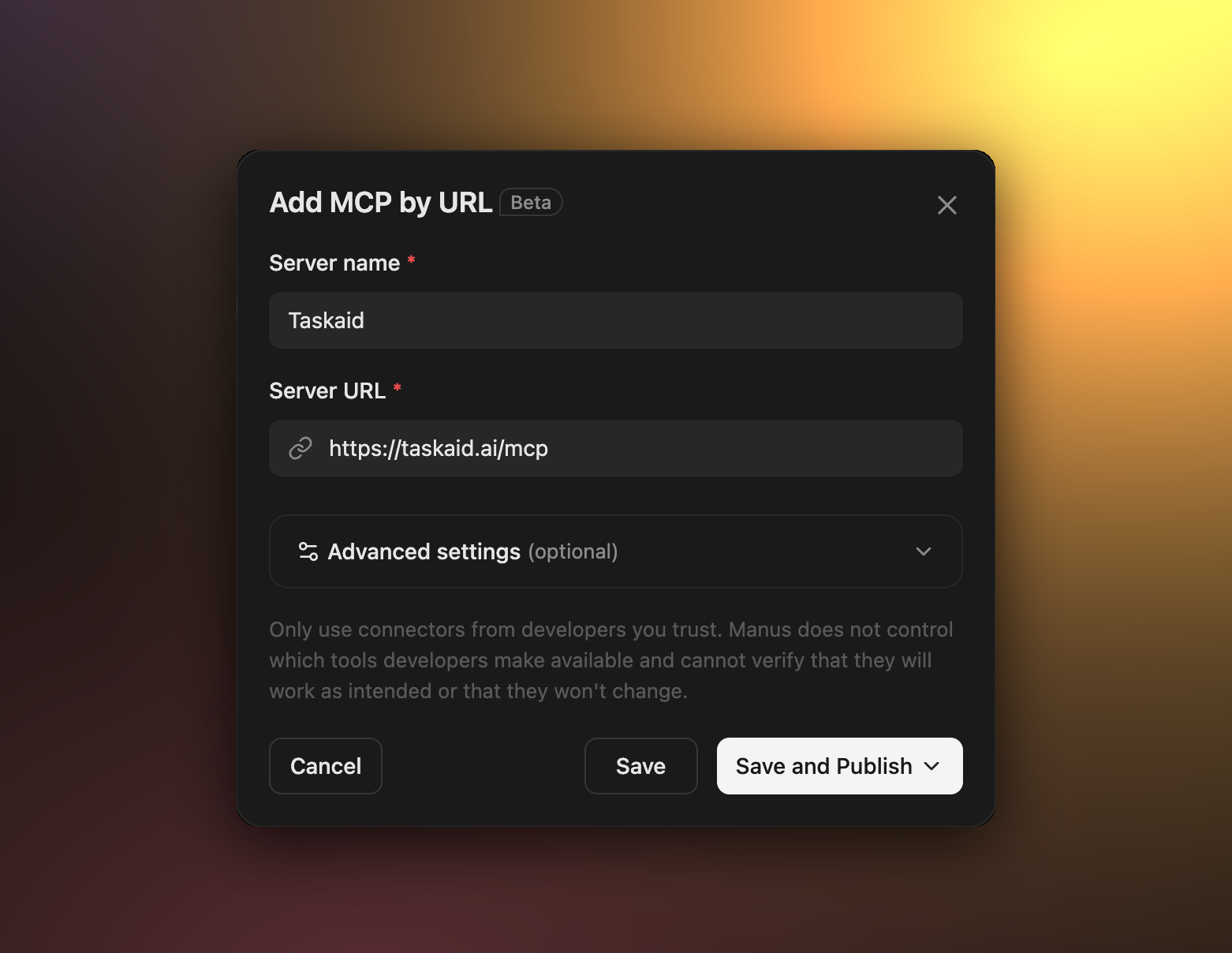
Enter
Taskaidas the Server name and paste this as the Server URL:https://taskaid.ai/mcp -
Select Save.
-
Sign in to Taskaid when Manus asks, and approve the access you want to grant.
Leave Advanced settings empty. Taskaid registers its own OAuth client, so there's no client ID or secret to enter.
Custom MCP, in the same menu, works too: the same name and URL, with Transport Type set to HTTP and no custom headers. It has room for an icon and a note on the connector.
Try it
- "Pick up TASKAID-45, do the research it asks for, and leave what you find in its note."
- "Read today's plan and my starred tasks, then draft whatever they're waiting on."
- "Compare three venues for the team offsite and add the booking as a task for Monday."
- "When you're done, mark TASKAID-45 complete and add a task for anything still open."
A task's note is Markdown, so it's a good place for Manus to leave sources, findings and next steps for whoever picks the task up next. More starting points on the Assistants page.
What Manus can do
Manus works with your tasks as part of whatever job you give it. Taskaid has no delete tool, so Manus cannot delete anything even if you ask it to, and every task it creates records Manus as where it came from.
Every action runs as your own account, limited to what you approved, and your data is never used to train AI models. For the tools themselves see the MCP server reference, and our Privacy Policy and Terms of Service for everything else.
Manage or disconnect
In Manus, open Settings → Connectors, select Taskaid and open Manage. Choose Disconnect, or Delete to remove the connector entirely. To revoke access from Taskaid's side, open Settings and disconnect Manus under Connected apps.
Troubleshooting
Manus asks for an API key, a token or a client ID. There's none to enter. Taskaid uses OAuth: leave those fields empty, save, and sign in when asked.
Taskaid shows no tools. Open Manage → Edit configuration on the connector and check the URL is exactly https://taskaid.ai/mcp.
Manus asks you to sign in again. Your access token expired or was revoked. Sign in and approve once more.